



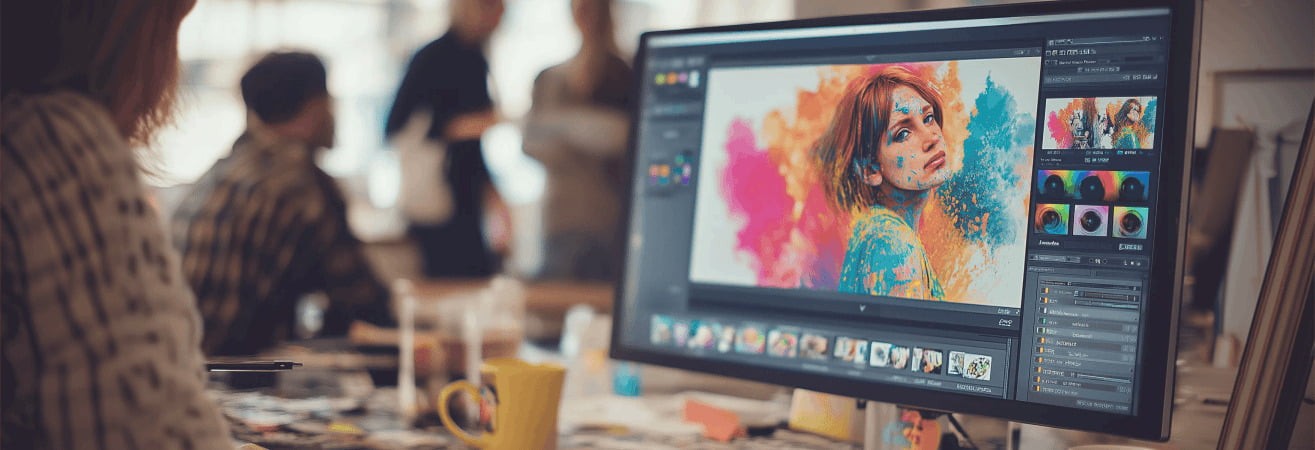
Photo editing : The main tools for making your photos look amazing
A beautiful photo doesn't always require sophisticated equipment. Sometimes, a few adjustments are all it takes to reveal its full potential. A little light, a better contrast balance, a rethought frame... and the image takes on a whole new dimension.
Today, editing tools are available to everyone. Whether you use your phone, a computer or more advanced software, there is a solution for every level. The key is to find the one that suits you, depending on your needs and how you work with images.
In this article, you'll discover a selection of accessible tools, ranked from the simplest to the most comprehensive. From quick editing to professional editing, you'll see that you don't need to be an expert to enhance your photos.
Photo editing tools built into your device
Before you dive into more complex software, it's good to know that many editing tools are already available on your devices, without having to install anything. Whether on a smartphone or computer, you can do a lot with what you already have at your fingertips.
What is the simplest photo editing software?
Every smartphone has a photo viewer that allows for some basic editing. On Android, the options are often built into the ‘Google Photos’ app. On iPhone, the ‘Photos’ app offers an intuitive interface with easy-to-use sliders.
On computers, Windows and macOS also offer similar features. You can adjust the lighting, contrast, and colours, or apply predefined filters. These tools also allow you to crop an image, rotate it, or quickly remove a blurred area.
Photo framing is often one of the most useful adjustments. It refocuses the image, guides the eye, and improves the visual balance of a shot without altering its quality.
These basic functions are ideal for quickly retouching a photo right after taking it, without having to transfer the image elsewhere.
How do you retouch a photo with ChatGPT?
Obviously, this is a question that comes up often. At present, ChatGPT does not allow you to edit a photo directly. It does not replace image processing software, but it can assist you in the process.
For example, if you describe an image to it (subject, atmosphere, perceived problem), it can guide you on the edits to consider. Adjusting brightness, correcting tones, choosing the right tool... It can also explain how to correct a photo taken in low light, or how to improve an image that is too dull without losing its natural look.
You can also ask it for advice on how to avoid common mistakes or improve a photo's focus after shooting. It does not directly touch the image, but it can help you save time and improve your creative choices.
Essential free tools to take you further
When the tools built into your device are no longer enough, it's time to explore other solutions, without immediately switching to paid software. Today, there are excellent free alternatives available for both mobile and desktop computers. Here are a few pointers to help you make the right choice based on your level and needs.
What is the best free photo editing app?
If you mainly edit your photos on your mobile, there are several free apps that stand out. Snapseed, developed by Google, is one of the most comprehensive. It offers a wide range of tools, while remaining easy to use. You can adjust the exposure, improve sharpness, or add localised effects to specific areas.
Lightroom mobile, in its free version, also allows you to finely adjust light, contrast, and colour. Its clear interface appeals to many amateurs.
Canva, meanwhile, is mainly used to create visuals, but it also has simple options for retouching photos and adding text, filters, or effects.
These tools are very useful for correcting photos taken in low light, creating a blurred background, or enhancing certain details while maintaining a natural look.
What is the free equivalent of Photoshop?
If you are looking for a more comprehensive tool for your computer, GIMP remains the gold standard. It is free, open-source software that is compatible with Windows, Mac, and Linux. Its interface is similar to that of Photoshop and allows you to work on layers, use masks, and make very precise edits.
For those who prefer a lighter solution, Photopea is a very good alternative. This software runs directly in a browser, without downloading. It supports PSD, JPG and PNG formats and offers an interface very similar to that of Adobe.
These tools allow you to correct light, colours and perspective, as well as retouch faces or remove unwanted elements. They are ideal for those who want to learn more advanced features without investing immediately.
What is the best free photo editing software?
There is no single best tool, but rather several options suited to different user profiles. Here are a few suggestions depending on your level:
Beginner: Canva (intuitive and fast), the Photos app on Mac or Windows Photo Viewer for basic adjustments.
Amateur: Snapseed (for its wealth of mobile tools), or Polarr, which offers a modern interface and customisable effects.
Advanced: GIMP (very comprehensive) or Darktable, an open-source alternative to Lightroom, ideal for processing RAW files with finesse.
All of these free software programmes allow you to correct photos that are too dark indoors, improve contrast, adjust colour temperature and refine details. They also help you avoid blurry photos, provided you have a sharp image when you take the shot.
Professional tools, AI features, and advanced creation for your photo editing
If you want to take your photo editing to the next level, certain tools offer very advanced capabilities. They allow you to work with greater finesse, achieve professional results, or even use artificial intelligence to save time. Here is an overview of the most advanced solutions, whether free, paid, or hybrid.
What are the different types of photo editing tools?
There are often two main approaches to editing: automatic tools and manual adjustments.
The former are perfect for those who want quick results without getting into the details. They automatically adjust light, contrast, and saturation. Some even correct faces or backgrounds with a single click.
Manual adjustments, on the other hand, allow for more precise work. You can adjust the brightness, colour, contrast, sharpness, or even the white balance to your liking. These functions are useful for completely customising the look of an image.
Some software also offers more creative options. Image overlays, special effects, artistic filters, or even very high-resolution export for photo printing or professional publication.
What are the best photo editing tools?
Among the most powerful solutions, Adobe Lightroom and Photoshop remain the gold standard. Lightroom is appreciated for its clear interface and its ability to process RAW files with precision.
It is often used to correct exposure, standardise a series of photos, or create a consistent visual style.
Photoshop, on the other hand, offers almost total freedom. You work with layers, you can edit every detail, remove an element, or even cut out a subject with finesse. It is aimed more at those who already have a good grasp of the basics of editing.
Other tools such as Luminar Neo and DxO PhotoLab offer powerful alternatives, with modern interfaces and automation features. They are suitable for passionate photographers who want professional results without spending hours on each image.
What is the best free AI photo editing tool?
Artificial intelligence has become widely used in photo tools. It allows certain edits to be automated while maintaining a natural look.
Luminar, although it is a paid tool, offers a free trial version with impressive AI features. Sky correction, face enhancement, detail cleaning. With just a few clicks, you can correct a complex image, even if it was taken in poor conditions.
Free alternatives include Fotor, Canva (in its AI options), and Remove.bg for automatically cropping a subject. These tools are very effective for adjusting the mood or effortlessly restoring clarity to a scene.
How do you choose the tool that's right for you?
Before choosing software, ask yourself a few simple questions. What is your current skill level? How often do you edit your photos? Do you work from a smartphone or a computer?
If you are a beginner or only edit photos occasionally, a mobile app with automatic filters may be sufficient. For more regular use, it is better to opt for software that can precisely adjust the photo focus or apply localised corrections.
Some tools also help to avoid blurry photos by enhancing sharp areas or adding targeted contrast. It's best to try out several options before making a choice. Many software programmes offer free or trial versions, allowing you to find the one you're most comfortable with.
The right photo editing tool for everyone
Photo editing doesn't have to be reserved for professionals. With the right tools, anyone can enhance their images, reveal details or correct the mood with a few simple steps. What matters is not using the most powerful software, but finding the one that suits your needs and your pace. And also your way of seeing things.
From your phone's photo gallery to advanced editing software, there is now a whole range of solutions available, both free and paid, simple and sophisticated. The key is to dare to try, compare and enjoy working on your photos.
It is often these small adjustments that bring your memories to life and allow your images to finally convey what you really saw.